How do I manage IP access?
Managing IP Access on the Paytia Platform Why Manage IP Access? Managing IP access is essential for: Security: Restricting access to approved IP addresses ensures only authorized users can access sensitive data, reducing the risk of hacking or ...
Managing IP Access on the Paytia Platform
Why Manage IP Access?
Managing IP access is essential for:
- Security: Restricting access to approved IP addresses ensures only authorized users can access sensitive data, reducing the risk of hacking or malicious activity.
- Compliance: Enforcing IP restrictions helps meet regulatory compliance standards, avoiding potential legal or financial penalties.
- Preventing Misuse: Controlling IP access prevents unauthorized sharing of login credentials, ensuring that only intended users access the service.
Steps to Manage IP Access
Log in to the Merchant Portal:
- Navigate to the Paytia merchant portal and sign in with your credentials.
Access the IP Management Page:
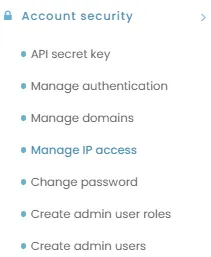
- Go to Account Security on the left-hand menu.
- Select Manage IP Access.
Configuration Options
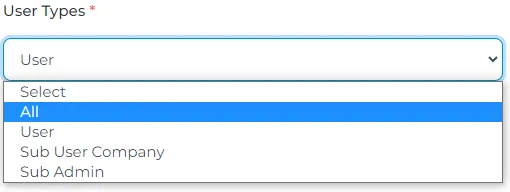
1. User Types
- Determines which users are restricted to specific IP addresses:
- All: Restricts all users of your Paytia account.
- User: Applies restrictions to users only.
- Sub User Company: Restricts users of associated companies.
- Sub Admin: Restricts sub-admins only.
2. IP Types
- Choose the type of IP address entry:
- Host: Enter a single IP address.
- IP/Subnet CIDR Range: Use a start IP and a subnet mask (e.g.,
192.168.1.0/24). - Range: Specify a range of consecutive IP addresses (e.g.,
192.168.1.1to192.168.1.100).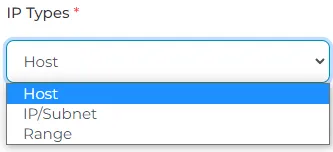
3. Host
- Enter the IP address or range in the Host field. This identifies the specific devices allowed access.
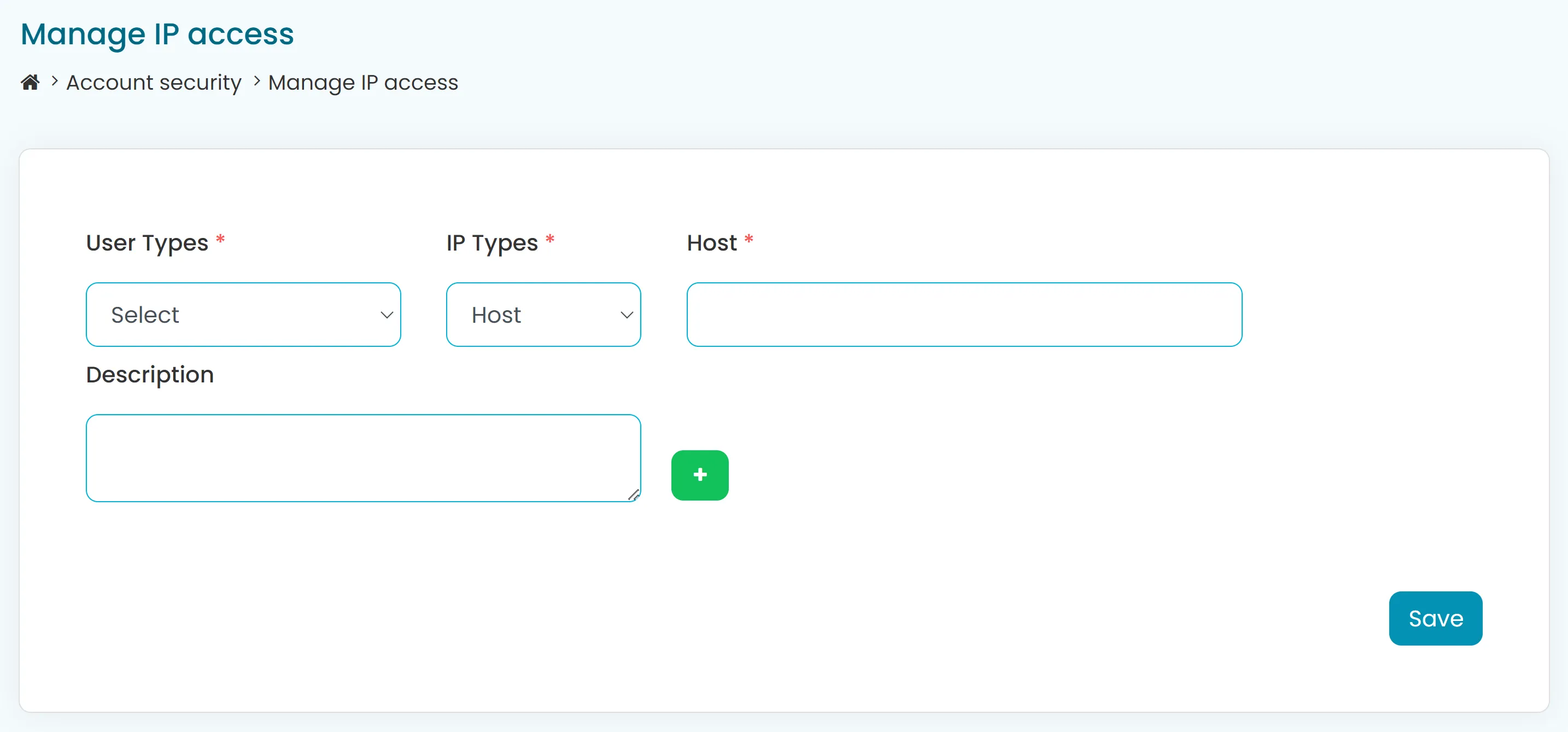
Adding IP Access Details
- Select User Type: From the drop-down, choose the user category.
- Select IP Type: Specify whether the entry is a Host, Subnet, or Range.
- Enter the Host: Input the IP address or range.
- Add a Description: Provide additional details or justification for the IP restriction.
- Save Settings: Click the Save button to apply the configuration.
Example Use Cases
Host Entry:
- Restrict access to a single trusted IP address:
192.168.1.10.
- Restrict access to a single trusted IP address:
Subnet Entry:
- Allow a subnet of IP addresses:
192.168.1.0/24.
- Allow a subnet of IP addresses:
Range Entry:
- Specify a range of devices:
192.168.1.1to192.168.1.50.
- Specify a range of devices:
By following these steps, you can effectively manage IP access, enhancing the security and control of your Paytia account.
More in Configuration
How do I set the countries my company operates in?
Setting Up Operating Countries for Payment Processing Overview The Operating Country setting allows you to define the countries where your users can process payments. These settings determine the billing and shipping country options available in the ...
Set your security PIN for outbound calling
Security pin for outbound calling through Agent Capture Assist When you progress through the setup process if your account package has the Outbound Calling license enabled you will be asked to set a 3 digit security pin. When you call your chosen ...
Turn off the Keyphone setting
The Keyphone setting will allow you the choice on whether you wish your merchant/agent to take payments via the phone without the use of Agent Capture Assist. This article will guide you on how to access this setting. Contents of Keyphone setting ...
How do I upload my company logo?
How to Use Your Company Logo on Payment Links Pages To provide a more personalized experience for your customers, you can replace the default Paytia logo on the payment confirmation page with your company’s logo. Follow these steps to upload and ...
How do I use SMS on the Paytia platform?
Using SMS on the Paytia Platform Overview Paytia allows users to send SMS messages for secure payment processing. This guide explains how to purchase, manage, and customize SMS messages on the Paytia platform. Accessing SMS Services Login to Paytia ...
Can I use my existing merchant account with Paytia?
Can I Use My Existing Merchant Account With Paytia? Yes, you can use your existing merchant account with Paytia! Here's how it works, depending on your payment gateway: Direct Payment Partner Scheme If your payment gateway is part of Paytia's Direct ...
Still need help?
Our support team is here to help. Submit a ticket and we'll get back to you within one business day.