How do I add a reserve amount to a credit card via Opayo?
Reserve and charge lets you hold an amount on a customer's card using Opayo's deferred option, without taking the money yet. Here's how to set one up.
Adding a Reserve Amount to a Credit Card via Opayo Using Paytia
The reserve and charge feature on Paytia allows you to place a shadow payment reserve on a customer's credit card using Opayo's deferred option. This process enables you to secure a specific amount without collecting the payment immediately. Here's how to do it:
Steps to Add a Reserve Amount
Log In to Paytia
- Access your Paytia account using your credentials.
Navigate to the Payment Page
- Go to the Take Payment section.
- Select the appropriate Opayo payment gateway.
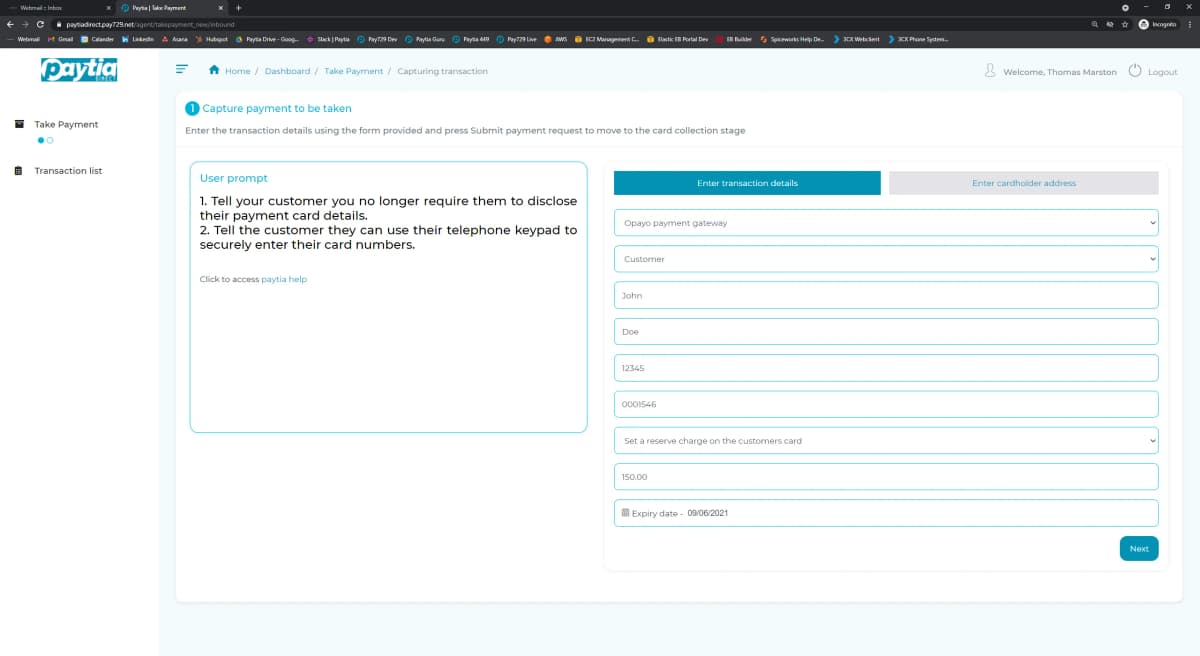
Enter Transaction Details
- Fill in the following fields:
- Customer Name: Enter the first and last name of the customer.
- Reference/Order Number: Use a unique identifier for this transaction.
- Payment Amount: Specify the amount to be reserved.
- Payment Type: From the dropdown menu, select Set a reserve charge on the customer's card.
Proceed with the Reserve Charge
- Double-check all entered details to ensure accuracy.
- Click Next to submit the transaction details.
- Paytia will instruct Opayo to place a shadow (reserved) charge on the card.
Opayo Reserve Charge Rules
Single Release Per Transaction:
- You can release funds only once per transaction for an amount up to the reserved amount.
30-Day Validity:
- Reserve transactions remain valid for a single release for up to 30 days.
- After 30 days, Opayo will automatically abort the transaction.
Recommended Release Timeframe:
- It is advised to release reserved transactions within 6 days.
- After 6 days, the shadow charge may disappear from the customer's card, and the protected funds may become available for the customer to spend.
Finalizing the Transaction
Once the reserved amount is no longer needed or ready to be charged:
- Log back into the Opayo system via Paytia.
- Perform a release of the reserved funds for the required amount.
- Ensure compliance with Opayo's rules for single releases.
By following these steps, you can effectively manage reserve transactions via Opayo using Paytia. This approach helps secure funds while providing flexibility in processing payments later.
More in Opayo
How do I configure my Opayo payment account to use Paytia?
Three things before it works: find your Vendor Name, add our IP addresses as trusted in the Opayo portal, then finish the gateway setup in Paytia.
What does this error code from Opayo mean?
How to look up an Opayo error code and what usually causes them — most often an invalid character in the submitted data, or a reference that isn't unique.
Elavon Opayo Fraud rule controls
AVS and postcode checks, CV2, 3D Secure and Opayo's risk scores all need setting before you go live. Here's what each one does and how strict to make it.
Still need help?
Our support team is here to help. Submit a ticket and we'll get back to you within one business day.