How do I create a Checkout payment method?
Checkout payment methods are what your customer picks from at the point of purchase. You'll need the Checkout feature enabled and a gateway that supports it.
🛒 How to Create a Checkout Payment Method in Paytia
If you're an administrator and wish to enable specific payment method options for your customers during checkout, follow the steps below to set up a checkout payment method in your Paytia dashboard.
✅ Prerequisites
-
Ensure your Paytia admin account has the Checkout feature enabled.
-
Confirm that at least one payment gateway account (e.g., Lloyds, Fena) capable of handling checkout payments is configured under your merchant account.
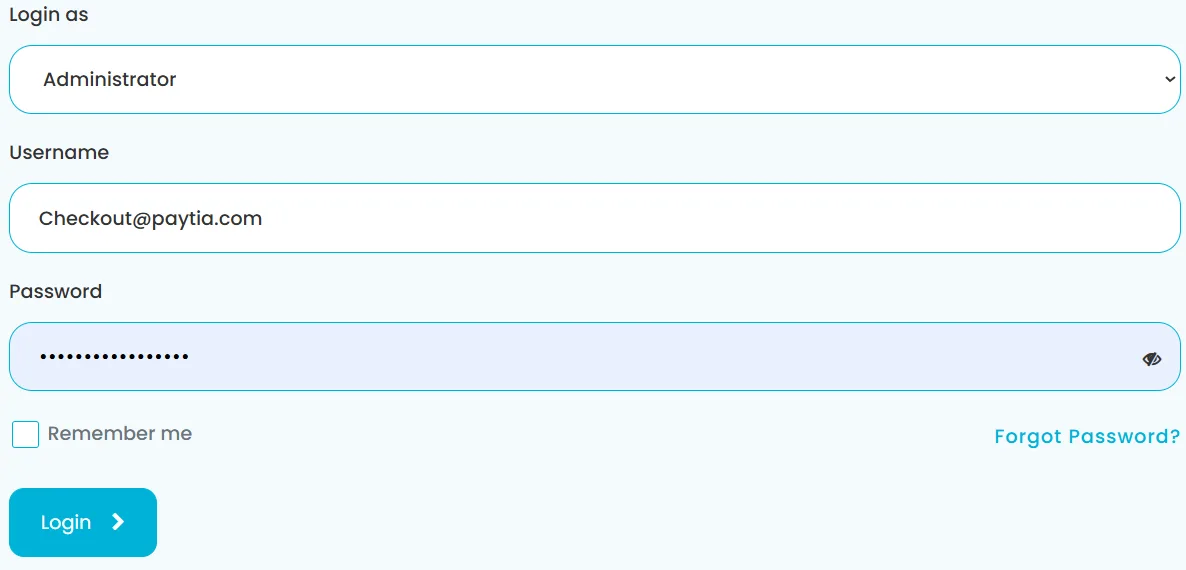
🔐 Step 1: Log In as Administrator
-
Go to the Paytia portal.
Log in using your administrator credentials.
-
Use the email address registered with Paytia.
-
Select Administrator from the “Login as” dropdown.
-
Enter your password and click Login.
-
📷 Example: Login screen
🧭 Step 2: Navigate to Checkout Management
-
In the left-hand sidebar menu, expand the Checkout management section.
-
Click on Checkout payment method.
📷 Example: Checkout configuration menu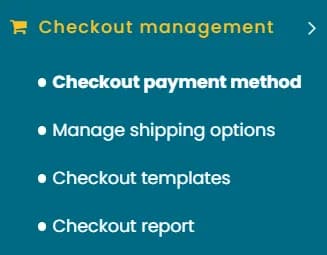
➕ Step 3: Add a New Configuration
-
Click the “Add configuration” button in the top-right corner.
Fill in the following fields:
-
Configuration Name: A descriptive label (e.g., “Pay by Card”).
-
Gateway Name: Choose the gateway (e.g., Lloyds Connected, Fena payment gateway).
-
Gateway Account: Select the specific account linked to your merchant.
-
Type: Choose either
CardorBankingdepending on your service.
-
-
Use the Status toggle on the right-hand side to activate or deactivate the payment method.
📷 Example: Adding configuration screen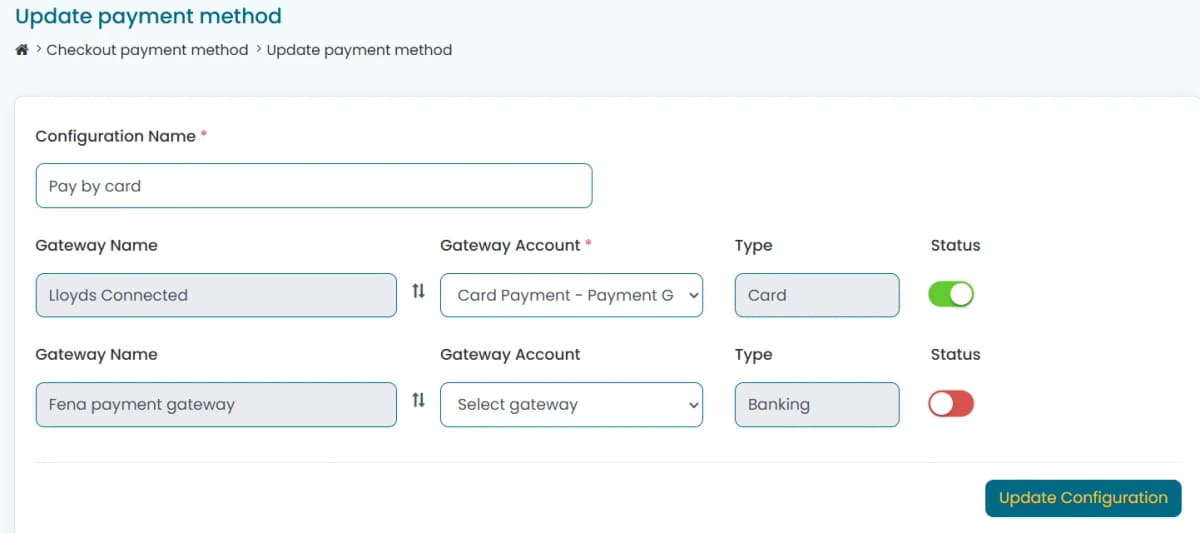
💾 Step 4: Save the Payment Method
Once you've entered all necessary details, click “Save Configuration” in the bottom right corner.
📷 Example: Saved payment methods list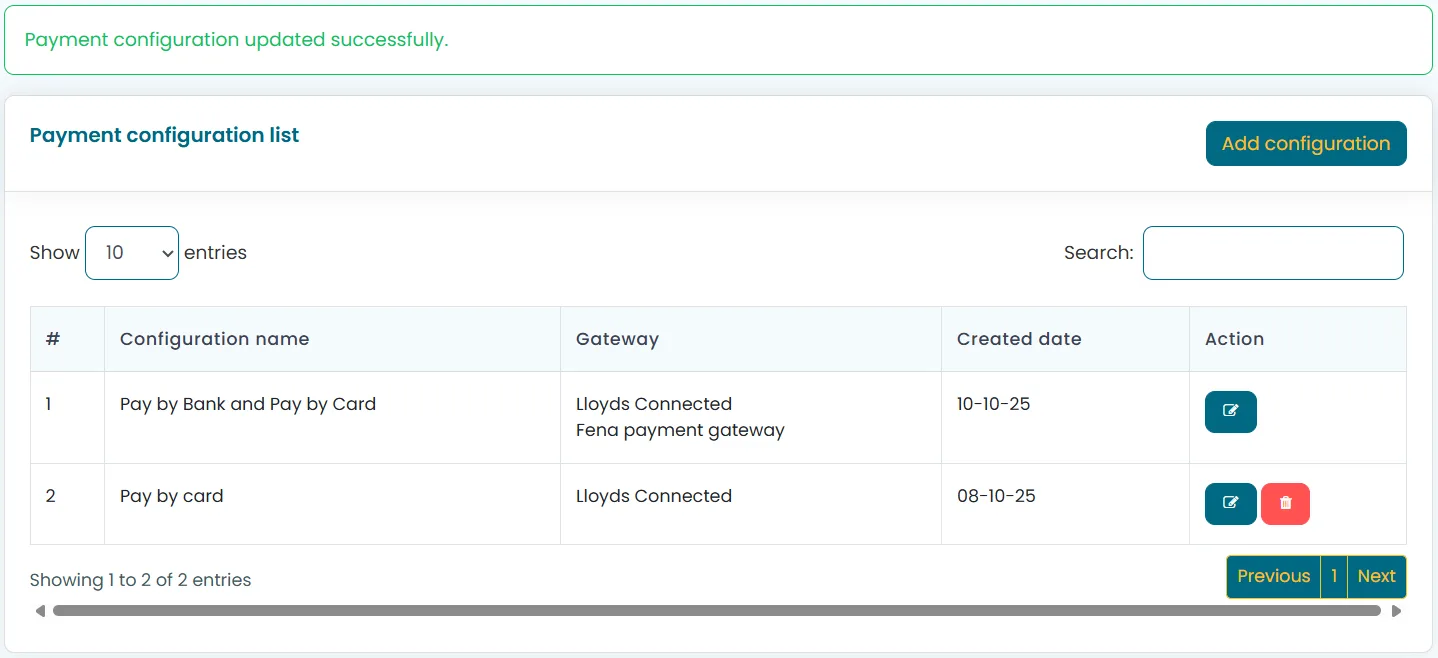
✅ Final Notes
-
You can add multiple configurations to support different combinations of gateways and payment types.
-
Use the edit (✏️) and delete (🗑️) icons to manage existing configurations.
-
Ensure your checkout configurations are kept up to date with your active gateways and merchant services.
🆘 Need more help?
If you have issues configuring checkout payment methods, contact Paytia Support for further assistance.
Still need help?
Our support team is here to help. Submit a ticket and we'll get back to you within one business day.