How to Change Your Password
Two routes: change it from inside your account if you know your current password, or reset it from the login screen if you don't.
How to Change Your Password
If you need to update your password for your Paytia account, follow these simple steps:
Option 1: Update Your Password
If you know your current password:
- Log in to your Paytia account.
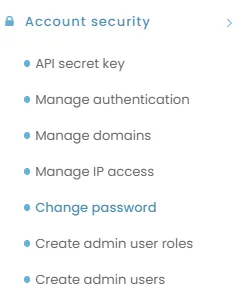
- From the left-hand menu, navigate to Account Security.
- Click on Change Password.
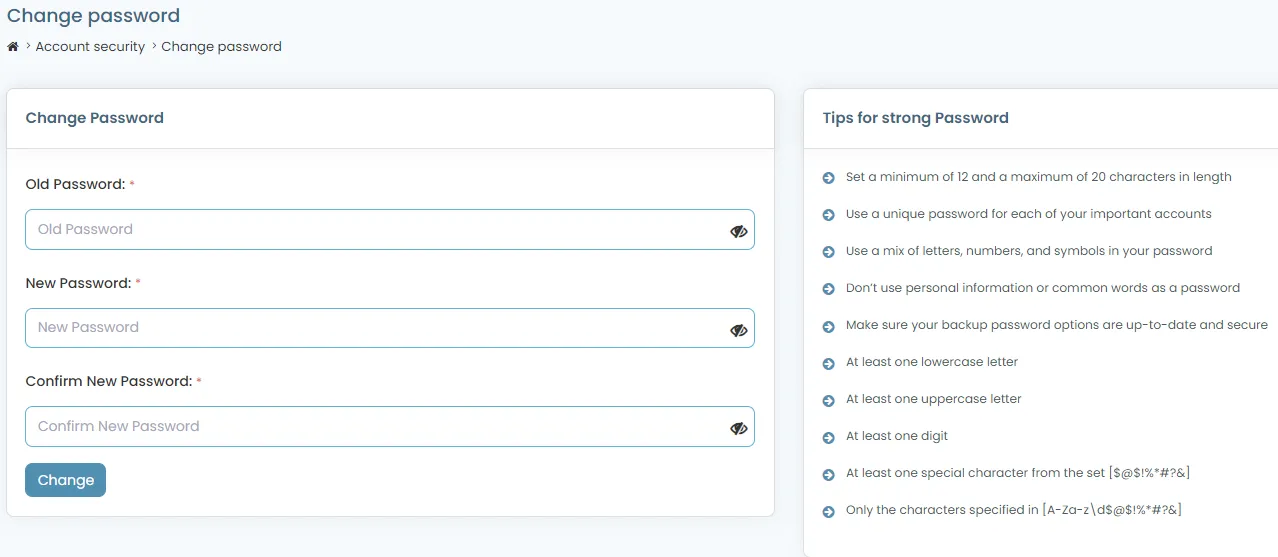
- Fill out the required fields:
- Old Password: Enter your current password.
- New Password: Enter your desired password.
- Confirm New Password: Re-enter your new password to confirm.
- Click Change to update your password.
Option 2: Reset Your Password
If you forgot your password:
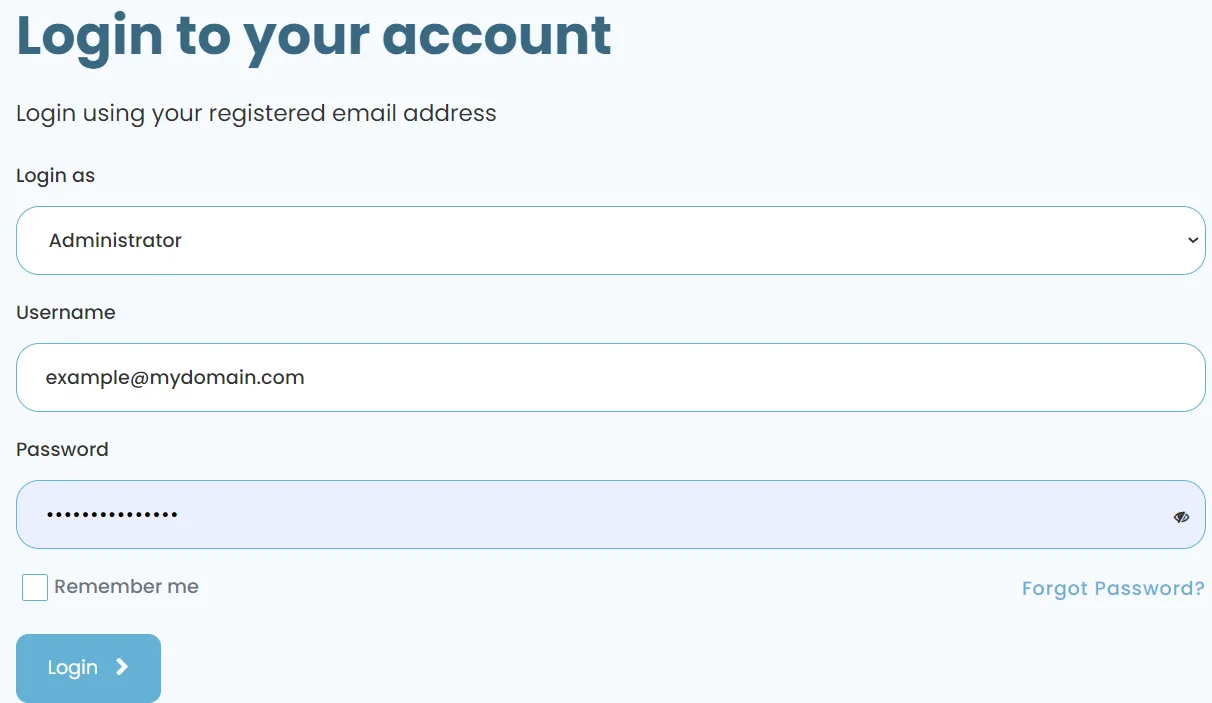
- Go to the Paytia login page at log in to your Paytia account.
- Click on Forgot Password? at the bottom right of the login screen.
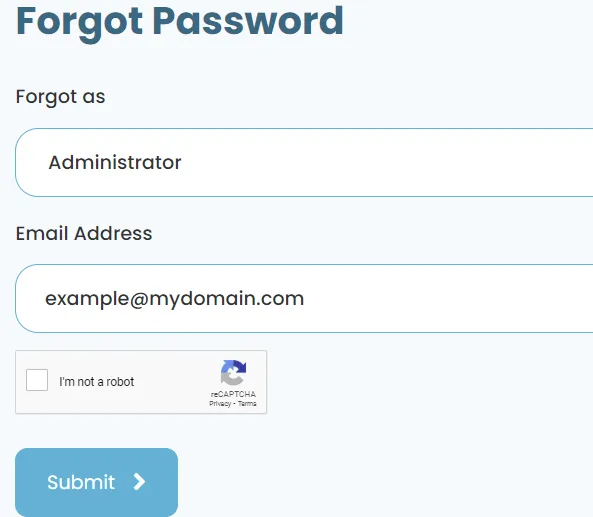
- Set the Login as dropdown to Administrator.
- Enter the email address you used when signing up for Paytia.
- Click Submit.
- Check your email inbox for a password reset link (check the spam folder if you don't see it).
- Follow the link and create a new password that meets the criteria below.
Password Requirements
To ensure security, your password must meet the following standards:
- Length: Between 12 and 20 characters.
- Use a unique password for this account.
- Include:
- At least one lowercase letter.
- At least one uppercase letter.
- At least one digit.
- At least one special character from the set
[$@$!%*#?&].
- Avoid:
- Personal information.
- Common words or simple patterns.
Troubleshooting
- If you encounter any issues, raise a support case by emailing Paytia's technical support team at techsupport@paytia.com.
By following these steps, you can ensure your account remains secure and accessible.
More in Troubleshooting
Troubleshooting Call Audio Quality Issues with Paytia
We sit in the middle of the call, so audio problems can come from either leg. Working out which side it's on is what gets it fixed quickly.
What is an Agent ID?
An Agent ID ties each payment to the member of staff who took it, which is what makes reporting and auditing possible.
What is an OTP code?
The one-time code we email during registration to confirm the address is yours. Here's where to enter it and what to do if it doesn't turn up.
When I open the Paytia WebRTC dialler on my MAC in the Google Chrome browser it shows as full screen
Chrome on a Mac can open the dialler full screen instead of as a small window. It's a macOS setting rather than a Paytia one — here's the change to make.
Why Aren't My Customer Details Appearing in Reports After Payment?
Nearly always because the payment went through Keyphone rather than Agent Capture Assist. Keyphone doesn't capture customer details, so there's nothing to report on.
Why can't my customer confirm the amount?
Their key presses aren't reaching us. This walks through the usual causes, from the handset itself to a carrier stripping the tones in transit.
Still need help?
Our support team is here to help. Submit a ticket and we'll get back to you within one business day.