When I open the Paytia WebRTC dialler on my MAC in the Google Chrome browser it shows as full screen
Chrome on a Mac can open the dialler full screen instead of as a small window. It's a macOS setting rather than a Paytia one — here's the change to make.
Resolving Full-Screen Display of Paytia WebRTC Dialler on Mac
When opening the Paytia WebRTC dialler on a MacBook using Google Chrome, the dialler may display in full screen instead of as a small, phone-sized window. Below is a step-by-step guide to modify your macOS settings and browser behavior for optimal use.
Steps to Fix Full-Screen Display
1. Update macOS System Settings
-
Open the Apple Menu in the top-left corner of your screen.
-
Select System Settings from the dropdown.
-
Navigate to Desktop & Dock in the left-hand menu.
-
Find the setting labeled "Prefer tabs when opening documents".
-
Set this option to "Never".
- Why: This ensures that new pages or windows do not open as tabs, which causes the dialler to display in full-screen mode.
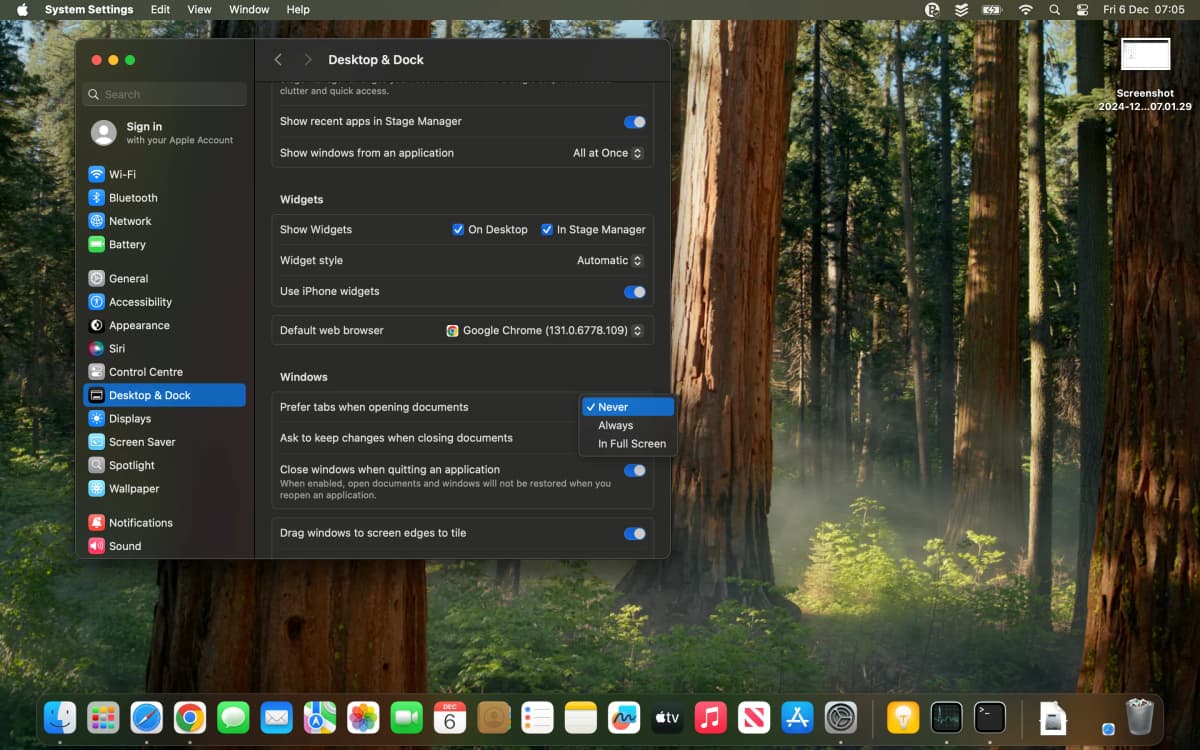
- Why: This ensures that new pages or windows do not open as tabs, which causes the dialler to display in full-screen mode.
2. Restart Google Chrome
-
Quit Chrome completely by:
- Right-clicking the Chrome icon in the dock and selecting Quit, or
- Pressing Command + Q.
-
Reopen Google Chrome.
-
Log in to your Paytia account.
-
Navigate to the CALL NOW tab and open the WebRTC dialler.
- Expected Behavior: The dialler should now open as a smaller window.
3. Adjust Chrome Window Size (If Necessary)
- If the dialler still opens in full-screen mode:
- Exit full-screen mode in Chrome.
- Resize the Chrome window manually:
- Drag the corners of the Chrome window to simulate a full-screen appearance without maximizing it.
- Open the dialler again. It should now appear as a pop-up window.
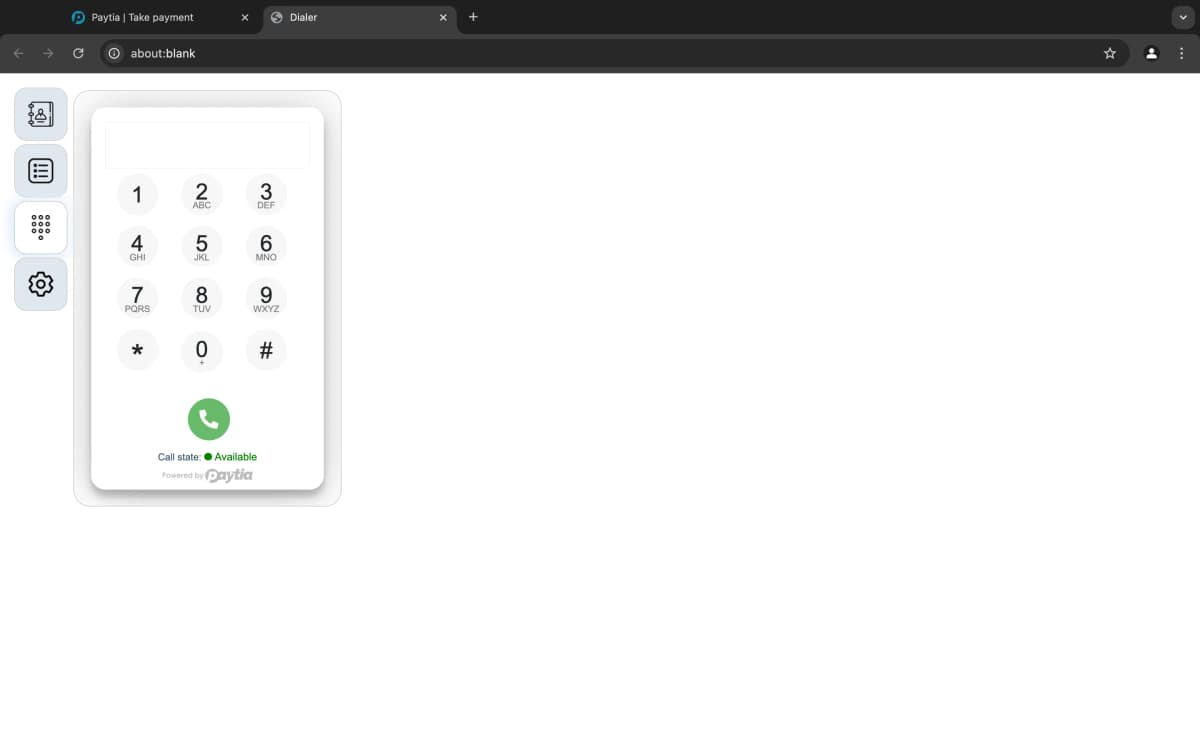
Additional Notes
- Running Chrome in Maximized Mode: If Chrome is maximized, it may force the dialler to open as a tab. Ensure Chrome is in an unmaximized state to allow pop-ups to open correctly.
- Popup Blockers: Make sure no extensions or settings are blocking popups for the Paytia domain.
With these changes, your Paytia WebRTC dialler will function as intended, providing a more user-friendly interface.
More in Troubleshooting
Why Aren't My Customer Details Appearing in Reports After Payment?
Nearly always because the payment went through Keyphone rather than Agent Capture Assist. Keyphone doesn't capture customer details, so there's nothing to report on.
Why can't my customer confirm the amount?
Their key presses aren't reaching us. This walks through the usual causes, from the handset itself to a carrier stripping the tones in transit.
Do I have to install software on my PC to take payments?
No. There's nothing to install. Agent Capture Assist runs in a browser, and the payment itself happens over the phone.
Gateway Error Messages: Understanding and Resolving Issues
What the common payment gateway errors actually mean — security violations, declines, malformed requests — and how to clear each one.
How do I reset a users password?
You don't set a user's password for them. You resend the reset link from the management portal and they choose their own.
How should I enter monetary values in the payment IVR?
There's no decimal point on a phone keypad, so the IVR assumes one. GBP 100.00 is 10000; 10.00 is 1000. Get it wrong and you'll charge the wrong amount.
Still need help?
Our support team is here to help. Submit a ticket and we'll get back to you within one business day.