How do I reset a users password?
You don't set a user's password for them. You resend the reset link from the management portal and they choose their own.
Changing a User's Password for Login
If an agent needs to reset their password for accessing the Agent Capture Assist system, you can manage this easily through the management portal. Follow the steps below to resend a password reset link.
Step 1: Log In to the Management Portal
-
Visit your Agent Capture Assist management portal. The link may differ slightly for your account, but you can use the generic URL:
log in to your Paytia account. -
Use your administrator login credentials to access the portal.
Step 2: Access User Management
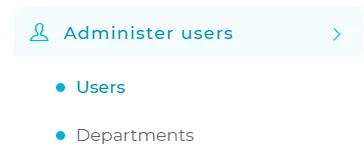
- Navigate to the Administer users section from the menu.
- Under this section, select Users to see a list of all agents in your account.
Step 3: Select the User
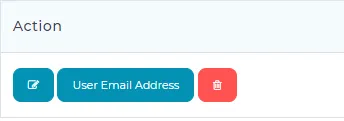
- Locate the agent whose password you want to reset.
- Next to their name, click on the User Email Address button.
Step 4: Resend Password Link
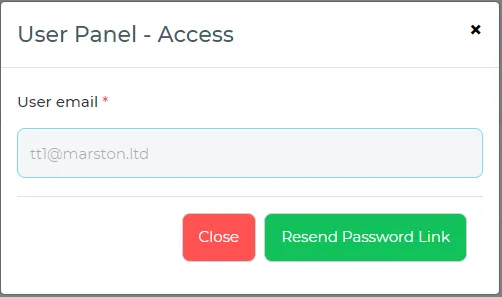
- A pop-up window labeled User Panel - Access will appear.
- Confirm that the correct email address is displayed in the User email field.
- Click the Resend Password Link button.
Step 5: Password Reset Process
- The agent will receive an email with a secure link to reset their password.
- They can click on the link to create a new password following the supported character rules.
Supported Password Requirements
When resetting their password, the agent must follow these rules:
- At least one lowercase letter.
- At least one uppercase letter.
- At least one digit.
- At least one special character from this set:
$@$!%*#?&. - Only characters from
[A-Za-z\d$@$!%*#?&]are allowed.
By following these steps, you can ensure agents regain access to their accounts securely and efficiently.
More in Troubleshooting
How should I enter monetary values in the payment IVR?
There's no decimal point on a phone keypad, so the IVR assumes one. GBP 100.00 is 10000; 10.00 is 1000. Get it wrong and you'll charge the wrong amount.
How to Change Your Password
Two routes: change it from inside your account if you know your current password, or reset it from the login screen if you don't.
Troubleshooting Call Audio Quality Issues with Paytia
We sit in the middle of the call, so audio problems can come from either leg. Working out which side it's on is what gets it fixed quickly.
What is an Agent ID?
An Agent ID ties each payment to the member of staff who took it, which is what makes reporting and auditing possible.
What is an OTP code?
The one-time code we email during registration to confirm the address is yours. Here's where to enter it and what to do if it doesn't turn up.
When I open the Paytia WebRTC dialler on my MAC in the Google Chrome browser it shows as full screen
Chrome on a Mac can open the dialler full screen instead of as a small window. It's a macOS setting rather than a Paytia one — here's the change to make.
Still need help?
Our support team is here to help. Submit a ticket and we'll get back to you within one business day.