What is an OTP code?
The one-time code we email during registration to confirm the address is yours. Here's where to enter it and what to do if it doesn't turn up.
Entering Your OTP Verification Code for Agent Capture Assist
To complete the registration process for your Agent Capture Assist account, you’ll need to verify your email address by entering the OTP (One-Time Password) sent to your registered email. Follow the instructions below to successfully complete this step:
Step-by-Step Instructions
Email Submission
- During the registration process, you will be asked to provide your first name, last name, and a valid email address. This email address will be used for account notifications and billing.
Receive Your OTP
- After submitting your details, a 4-digit OTP code will be sent to the email address you provided.
- Check your email inbox (and spam/junk folder if necessary) for the message containing the OTP.
Enter the OTP
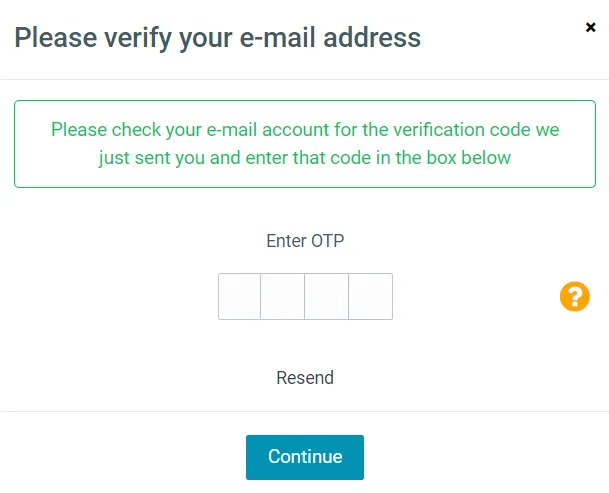
- In the OTP pop-up window, enter the 4-digit code exactly as it appears in your email.
- Click Continue to proceed with the registration process.
Resend the OTP (If Needed)
- If you haven’t received the code, click the Resend button on the OTP pop-up window to request a new code.
Troubleshooting
- No Pop-Up Appears?
- Ensure you have not blocked pop-ups on the paytia.com website. Disable any ad blockers or pop-up blockers that may prevent the OTP window from appearing.
- Still Not Receiving the OTP?
- Double-check the email address you entered for typos.
- Verify that your email provider isn’t blocking Paytia’s email notifications.
Once the OTP is successfully verified, you’ll move to the next step in setting up your Agent Capture Assist account. For additional support, contact techsupport@paytia.com.
More in Troubleshooting
When I open the Paytia WebRTC dialler on my MAC in the Google Chrome browser it shows as full screen
Chrome on a Mac can open the dialler full screen instead of as a small window. It's a macOS setting rather than a Paytia one — here's the change to make.
Why Aren't My Customer Details Appearing in Reports After Payment?
Nearly always because the payment went through Keyphone rather than Agent Capture Assist. Keyphone doesn't capture customer details, so there's nothing to report on.
Why can't my customer confirm the amount?
Their key presses aren't reaching us. This walks through the usual causes, from the handset itself to a carrier stripping the tones in transit.
Do I have to install software on my PC to take payments?
No. There's nothing to install. Agent Capture Assist runs in a browser, and the payment itself happens over the phone.
Gateway Error Messages: Understanding and Resolving Issues
What the common payment gateway errors actually mean — security violations, declines, malformed requests — and how to clear each one.
How do I reset a users password?
You don't set a user's password for them. You resend the reset link from the management portal and they choose their own.
Still need help?
Our support team is here to help. Submit a ticket and we'll get back to you within one business day.