Payment history
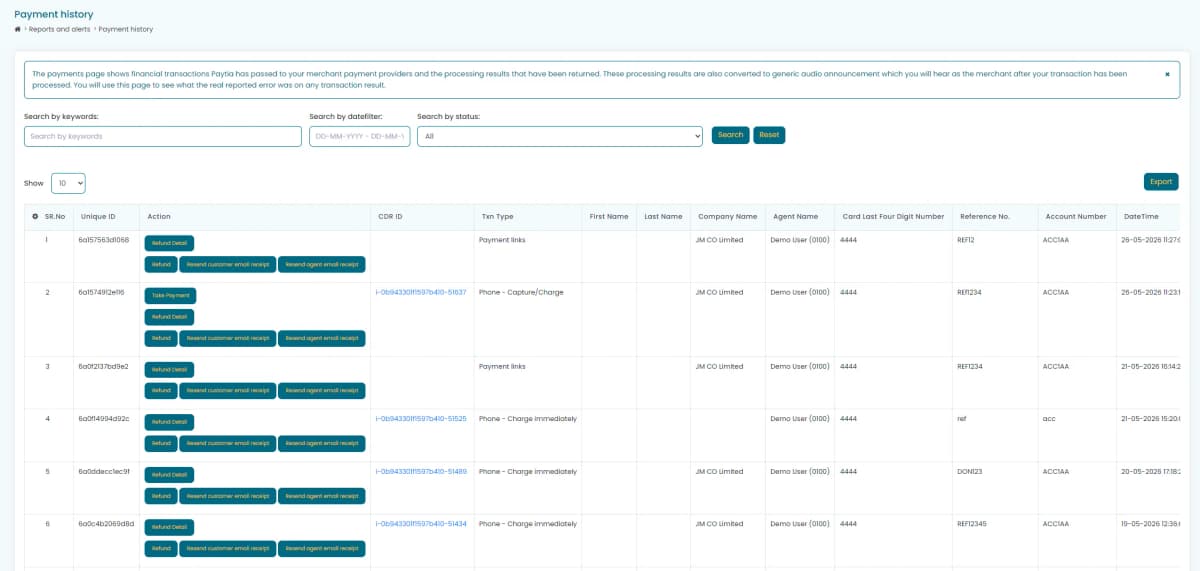
The Payment History report under Reports and Alerts lists every financial transaction on the account. Here's what's in it and how to set the view up.
Payment History for Transactions
This section provides an overview of the payment history feature in the Paytia platform, including its contents, functionality, and configuration.
Accessing Payment History
Navigate to Reports and Alerts:
- On the left-hand side menu of the Paytia platform, locate and click on Reports and Alerts.
- From the sub-menu, select Payment History Report.
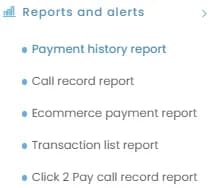
Understanding the Report:
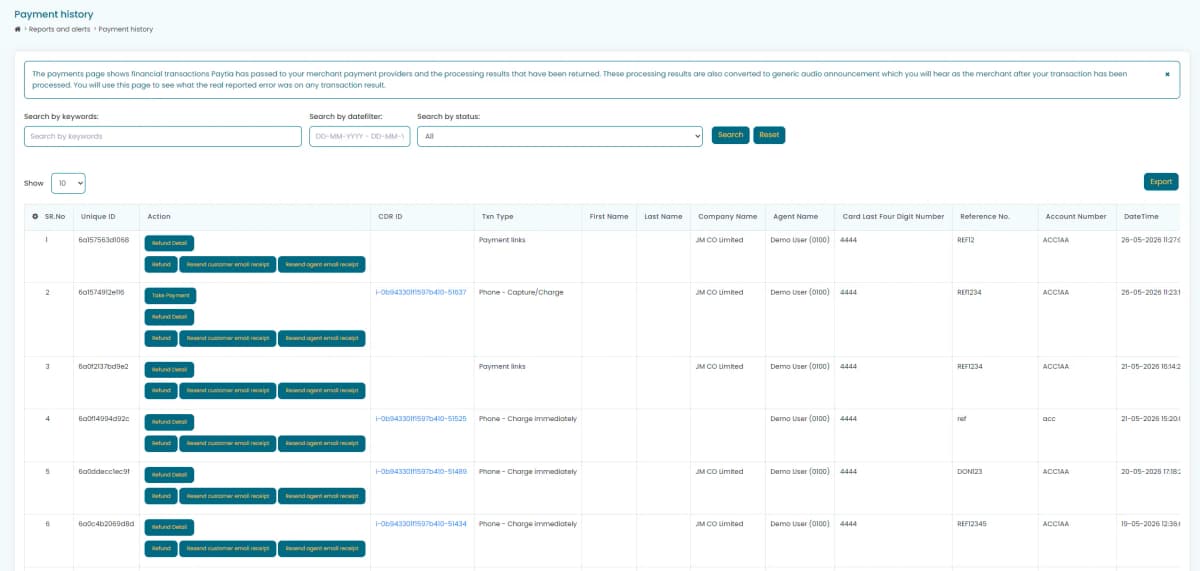
- The payment history report displays all financial transactions processed through Paytia.
- It includes details such as transaction outcomes, customer details, and associated charges.
Feature Availability:
- If your package does not include the reporting license, you will only see the transaction report on-screen.
- Packages with the reporting license allow filtering by date, transaction type, and exporting the report.
Clikc the cog icon to access the active column list.
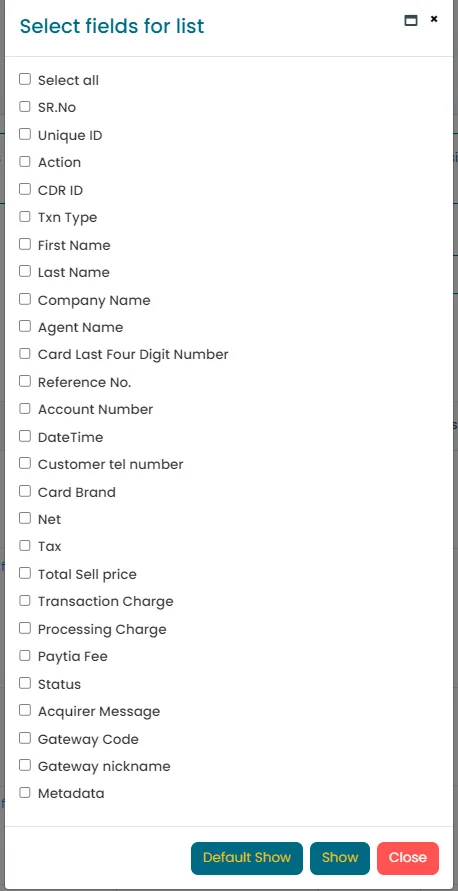
Report Contents and Columns
- Sr No.: Line number of the record.
- Unique ID: A transaction-specific ID shared with payment providers for reconciliation.
- CDR ID: Unique Call Data Record ID linking the transaction to the specific call.
- Txn Type: The type of payment transaction.
- Reference No.: Business-specific reference number for the transaction.
- Account Number: Account number provided for the transaction.
- DateTime: Time and date of the transaction.
- Customer Tel Number: Customer’s phone number used during the transaction.
- Card Brand: Payment card type (e.g., Visa, Mastercard).
- Total Sell Price: The total gross amount processed.
- Transaction Charge: Percentage fee for processing the payment.
- Processing Charge: Fixed authorization charge for the transaction.
- Paytia Fee: Fee charged by Paytia (if applicable).
- Status: Outcome of the transaction.
- Acquirer Message: Bank-provided settlement message.
- Gateway Code: Response code from the payment gateway.
- Gateway Nickname: The gateway account used for the payment.
Search and Filter Options
Outcome Filter:
- Use the dropdown labeled All to filter by payment processing outcomes such as:
- Success
- Failed
- Pending

Date Filter:
- Specify a date range for your search by using the To and From date fields.

- Specify a date range for your search by using the To and From date fields.
Search Box:
- Enter text or numbers to search for specific data across all columns (e.g., customer name, transaction ID).

- Enter text or numbers to search for specific data across all columns (e.g., customer name, transaction ID).
Show Entries:
- Adjust the number of rows displayed on the page using the Show dropdown.

- Adjust the number of rows displayed on the page using the Show dropdown.
Exporting Reports
- Excel: Export the filtered or full report in Excel format.
- Export All: Download the entire report in one click.

This feature provides quick access to transaction data for analysis, reporting, and reconciliation.
More in Platform
Reconciling Payments Made via Paytia
We post metadata with every transaction so you can match a phone payment back to the order it belongs to. Here's what gets sent and how to use it for reconciliation.
SIP call settings
SIP Call Settings control how inbound and outbound numbers are handled — CLI, DDI and number formatting. Here's how to find them and what each one does.
Third-party logs
Third-Party Logs show the webhooks we've sent into your system during API transactions — the payload, the status, and any error that came back.
Transaction logs
Transaction Logs carry the detail behind each payment — IDs, cardholder name, last four digits and the gateway's response. It's where you go to work out why one failed.
User role rights
User role rights decide who can do what in your account. Here's how to build a role and apply it to the users you create.
Users
Adding, editing and deleting users and their licences, from Administer Users then Users in the admin portal.
Still need help?
Our support team is here to help. Submit a ticket and we'll get back to you within one business day.