Manage numbers list
Importing numbers in bulk with a CSV, and assigning inbound and outbound calls to users across the different Paytia number types.
Manage Number Import Process
This guide explains how to import telephone numbers into the Paytia portal using the Manage number import tool.
Index
- Overview
- Open Manage number
- Start the import process
- Download the sample CSV template
- Complete the CSV file
- CSV column guide
- Important note before import
- Save and upload your file
-
So to wrap up
Overview
The Manage number import process lets you upload multiple telephone numbers into the Paytia portal using a CSV file.
This is useful when you need to add several numbers at once, instead of entering each number manually.
You will first download a sample CSV template from the Paytia portal. You can then add your own telephone number data and upload the completed file back into Paytia.
Open Manage number
Log in to the Paytia portal.
From the left-hand menu, go to:
Configure telephony > Manage number
You can also access the page here:
https://accounts.paytia.com/portal/merchant/manage_numbers_list
Manage numbers list
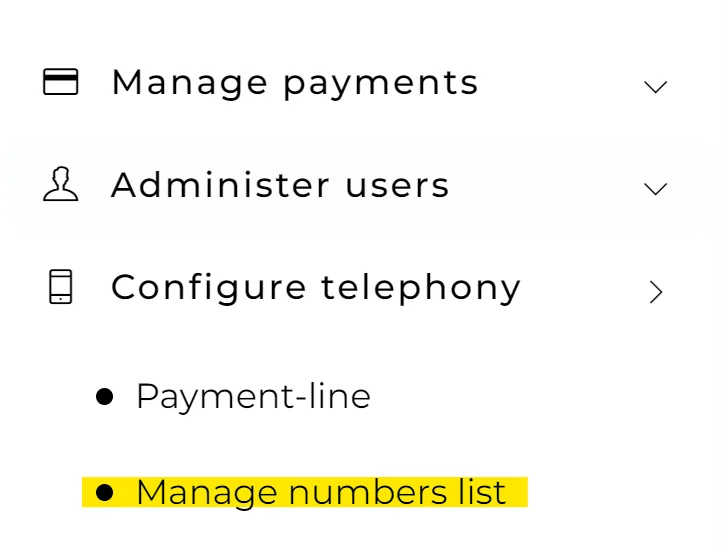
On the left-hand side of the Paytia platform you will see a category named Configure telephony, click here and sub-menus will appear. Please click on the sub-menu named Manage numbers list.
The Managed Number list now allows you to set which telephone numbers you want your calls forwarded to from the Paytia platform (Inbound) and which telephone numbers you will be call to Paytia and onward to your customers from (Outbound)
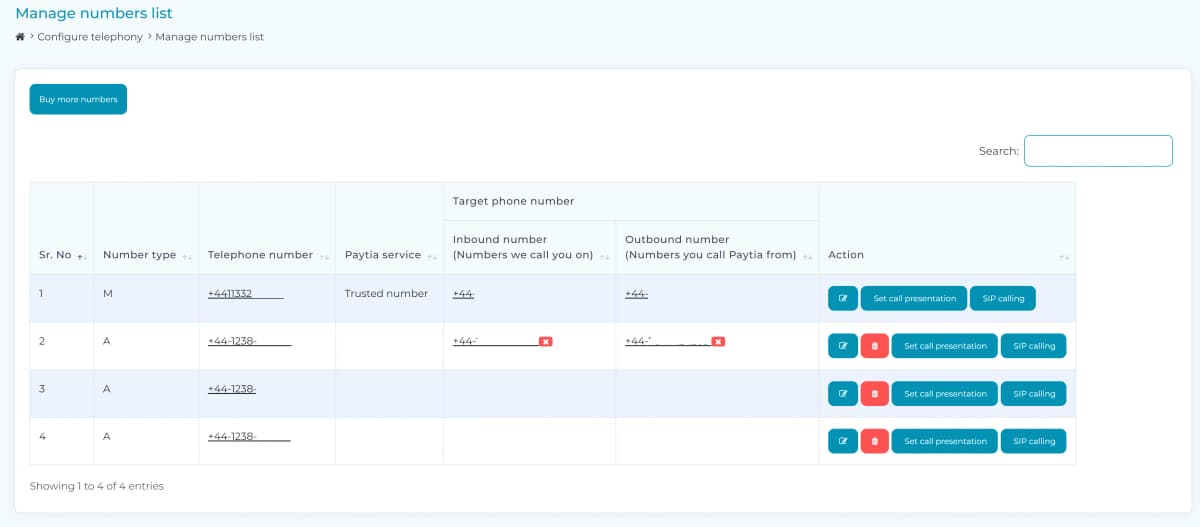
The Manage Numbers list screen allows you to assign users to the numbers associated with your inbound and outbound calling.
Number type
The number type denotes if the phone number is
M - A main phone number
A - An additionally added telephone number
Paytia service
When you edit the phone number, you can choose how the call is routed to that number.
- Inbound call forward - This is the phone number that you want Paytia to forward your calls to
- Agent call return - This is a licensed Paytia service that allows you to have a one-to-one mapping between a Paytia phone number to the phone number of one of your payment users' direct dial numbers.
- SIP number - This is a licensed Paytia service that allows you to add additional virtual phone numbers that you have purchased either from Paytia or another telephony provider (connected via Paytia). Paytia requires any telephone numbers you wish calls connected for to be added to your account or calls will be rejected.
Additional buttons
Adding more numbers
Note: the Add more numbers button only appears if the sales package you purchased has this license enabled. If you wish to add more SIP phone numbers to your account please contact techsupport@paytia.com
If you are a SIP user you can click the Add more button on the top-left of the page to be able to add any of your business telephone numbers which you wish Paytia to trust to allow you to make and receive phone calls through Paytia.
Buying new numbers
Note: the Buy more numbers button only appears if the sales package you purchased has this setting enabled. If you wish to add more SIP phone numbers to your account please contact techsupport@paytia.com
If you want to purchase more geographic phone numbers for your Paytia account, click Buy more numbers.

Purchasing new numbers allows you to assign Paytia services to multiple numbers rather than just the one you were given for free when you signed up with Paytia.
Once you have chosen the additional numbers you require click the Click here to continue button.

Setting the call presentation of the telephone number




SIP calling
Inbound calls received into a telephone system

CLI and DDI received are forwarded on. In this mode, Paytia will keep the CLI (number calling) and DDI (number being called) the same between receiving a call in and making a second call back out.


If your carrier or phone system need to use a specific number format you can change the way Paytia expects to handle the phone numbers you are using.
e.164 format - all your numbers will be sent with a prefix + and the country code, no lead zero digit followed by the phone number.
National format - you will be sending the full phone number including the lead zero.
National format without the lead zero - you will be sending the full in-country phone number without the lead zero.
CLI and DDI received are forwarded on. In this mode, Paytia will keep the CLI (number calling) and DDI (number being called) the same between receiving a call in and making a second call back out.

CLI is forwarded on but DDI is changed to the Paytia secure payment number, Paytia will keep the callers number the same, but will send the phone on as though it is being forwarded to the number you specified in the Inbound number column.

If your carrier or phone system need to use a specific number format you can change the way Paytia expects to handle the phone numbers you are using.
e.164 format - all your numbers will be sent with a prefix + and the country code, no lead zero digit followed by the phone number.
National format - you will be sending the full phone number including the lead zero.
National format without the lead zero - you will be sending the full in-country phone number without the lead zero.
Manage Numbers List Guide
The Manage Numbers List section in the Paytia platform enables you to manage and configure the inbound and outbound telephone numbers used for your secure payment services. This guide provides detailed instructions on how to use and configure the settings effectively.
Accessing the Manage Numbers List
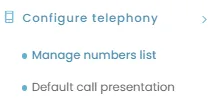
- Navigate to the Configure Telephony category on the left-hand menu.
- Click on the Manage Numbers List sub-menu to view the configuration screen.
Features of the Manage Numbers List
Overview
The Manage Numbers List allows you to:
- Assign telephone numbers for inbound (calls received by Paytia) and outbound (calls made from Paytia) calling.
- Configure routing settings for individual numbers.
- Add or purchase additional telephone numbers for use with Paytia services.
Columns and Their Functions
- Sr. No: The serial number of the telephone entry.
- Number Type: Indicates if the number is:
- M: Main business number.
- A: Additional number.
- Telephone Number: The phone number you’ve added or purchased.
- Paytia Service: The type of Paytia service assigned to the number, such as Trusted Number or SIP Service.
- Target Phone Number:
- Inbound Number: Numbers that Paytia forwards calls to.
- Outbound Number: Numbers used to call Paytia or customers.
- Action Buttons:
- Set Call Presentation: Customize how caller ID is displayed for inbound and outbound calls.
- SIP Calling: Configure SIP settings for advanced telephony use.
Additional Buttons
- Buy More Numbers: Allows you to purchase additional numbers to assign to your account. Click the button and follow the steps to finalize the purchase.
- Add More Numbers: If enabled in your account, this option allows you to add existing business numbers to Paytia’s trusted list for secure communication.
Configuring Phone Numbers
Setting Call Presentation
Customize how caller IDs are displayed during calls:
- Inbound Calls:
- Show the caller's telephone number.
- Show your assigned Paytia number as the source.
- Outbound Calls:
- Display your business telephone number.
- Display the assigned Paytia number.
Voice Preferences
- Configure the language and voice style (male/female) for the payment system during transactions.
Whisper Announcements
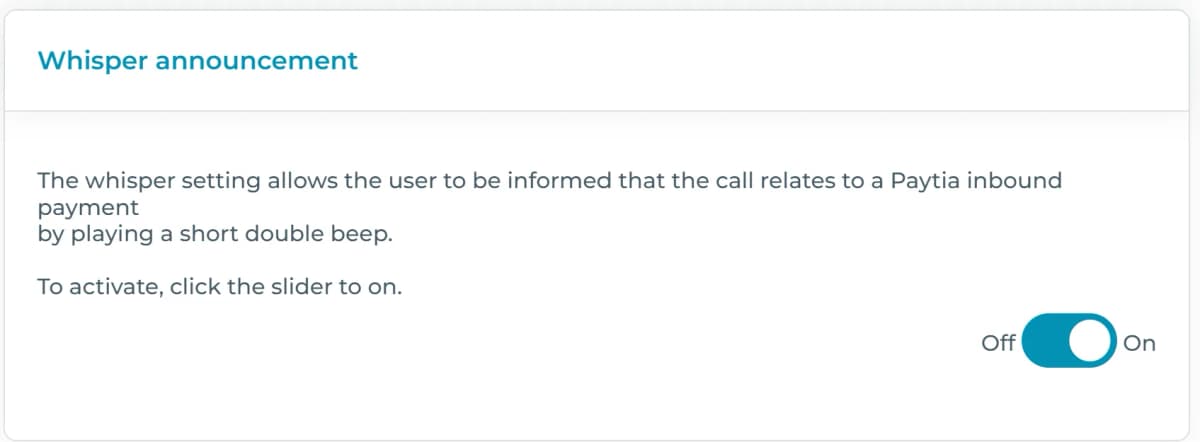
- Enable the Whisper setting to play a double beep when receiving a secure Paytia payment call. This ensures you recognize the nature of the incoming call.
SIP Calling
For users with SIP-enabled licenses, additional controls allow:
- Configuring caller ID (CLI) and called number (DDI) formats for inbound and outbound calls.
- Selecting number formats (e.g., e.164, national with or without leading zeros).
Default Settings
To reset settings for a specific number:
- Click the Set to Default button to match the default configurations in the Default Call Presentation or Default SIP Call Settings menus.
Notes
- Some options, such as adding or buying numbers, require a specific license. Contact techsupport@paytia.com for assistance.
- If you need additional geographic numbers for your business, consult the Buy More Numbers feature or reach out to Paytia Sales.
This guide ensures smooth management of your telephony setup for secure payment services through Paytia.
More in Platform
Payment history
The Payment History report under Reports and Alerts lists every financial transaction on the account. Here's what's in it and how to set the view up.
Reconciling Payments Made via Paytia
We post metadata with every transaction so you can match a phone payment back to the order it belongs to. Here's what gets sent and how to use it for reconciliation.
SIP call settings
SIP Call Settings control how inbound and outbound numbers are handled — CLI, DDI and number formatting. Here's how to find them and what each one does.
Third-party logs
Third-Party Logs show the webhooks we've sent into your system during API transactions — the payload, the status, and any error that came back.
Transaction logs
Transaction Logs carry the detail behind each payment — IDs, cardholder name, last four digits and the gateway's response. It's where you go to work out why one failed.
User role rights
User role rights decide who can do what in your account. Here's how to build a role and apply it to the users you create.
Still need help?
Our support team is here to help. Submit a ticket and we'll get back to you within one business day.